
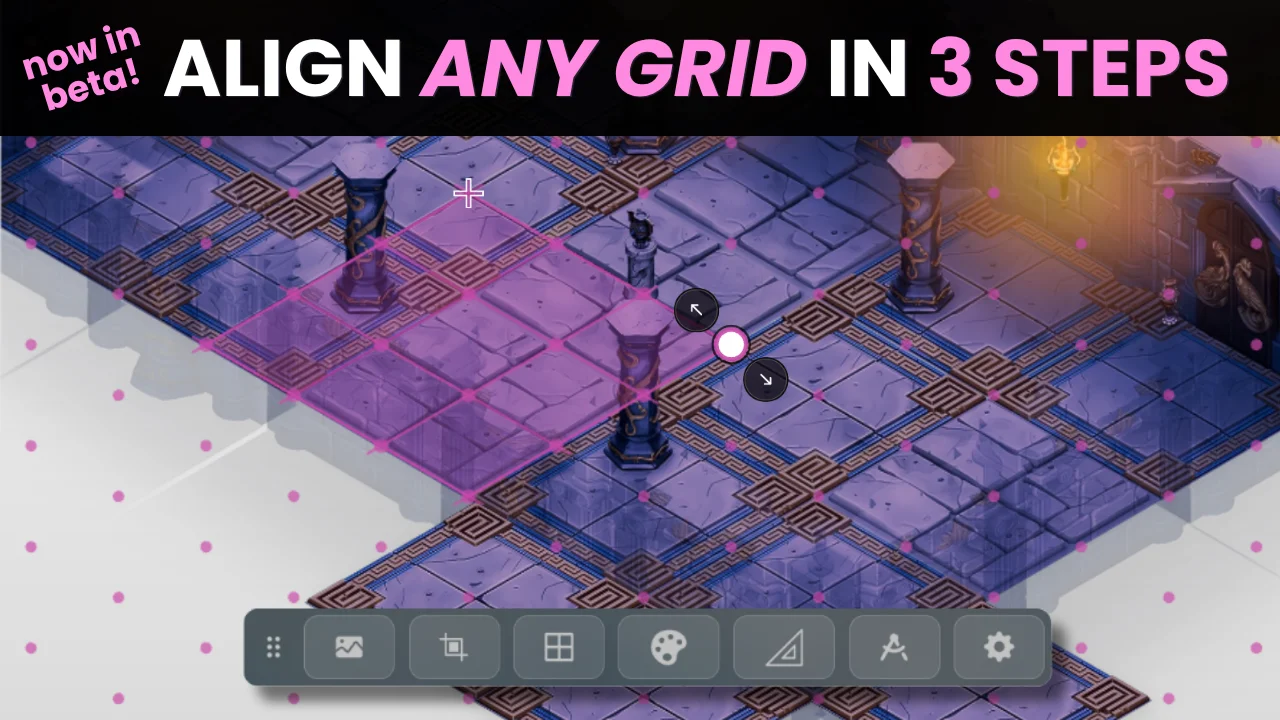

Starting today, our new and improved map alignment tool is live in open beta for all GMs, including free accounts. Launching alongside the helpful feature is a new hotbar on the VTT’s Map Layer that provides quick access to page management and customization tools, as well as a new way to set atmospheric vibes in your campaign. Read on for details.
Page Setup and Customization, Simplified

The current Align to Grid tool is buried several layers deep in a right-click menu, so we wanted to make it easier to find. Our solution, placing it front-and-center on the Map Layer of the VTT, also provided an opportunity to respond to feedback asking for quicker access to other common ways to set up and customize pages in campaigns without digging through the Page Menu. The resulting hotbar provides quick access to the following:

Upload Background
A quick and easy way to upload a map or background for your campaign page.
Supports jpg, jpeg, gif, webp, and webm. Use uvtt or dd2vtt files for maps that already have walls, portals, and lights configured (viewing or editing Dynamic Lighting still requires a Plus, Pro, or Elite subscription).

Align to Grid
Throughout the course of our beta, GMs have the choice of using the new Align to Grid tool, or the Legacy feature.
You can also leave feedback for the VTT team using the provided link at the top of this pop-up.
(We’ll walk through how the new 3-step guided tool works in the next section.)

Grid Settings
This mini-menu allows you to quickly:
- Toggle grid visibility
- Choose a grid type (square, vertical or horizontally oriented hex, isometric, or dimetric)
- Set a grid color
- Adjust your grid line opacity
- Adjust grid offset by exact pixels.

Page Customization
Here, you can set your:
- Board Color
- Grid Color
- Customize your Backdrop, either by selecting a color (or toggling on “detect dominant color”), or uploading an image. The latter is brand new and will be discussed below with an example.

Canvas Dimensions
Set the cell size (default is 70 pixels/cell) and exert precise control over the specific width and height of your page canvas.

Scale & Measurements
Set your diagonal measurement style and customize the scale of each cell (hot tip: clicking into the dropdown allows you to type whatever measurement you want. Look out! That Beholder is only 14 hot dogs away!)
Plus, toggle Range Scale on to play games like Daggerheart that use terms like “close” and “far” to measure.

Page Settings
This opens the full Page Settings menu traditionally accessed from the Page Menu, and includes access to all settings covered in the breakout tabs above, plus the ability to quickly:
- Rename and organize your page
- Access controls for Dynamic Lighting
Wait… Did You Say Backdrop Upload?
Heck yes! Now, instead of choosing a single, flat color to display behind pages, you can upload an image that serves as the backdrop of each scene.
Note: Since the backdrop stretches to fit each player’s display, animated images like overlay effects work best here: fog, water, fire, and other elements that help immerse your players in the game. Here are some of our favorite atmospheric titles on the Marketplace from independent creators.
How Align to Grid Works
We’ve replaced guesswork and workarounds with a guided 3-step process that works on more maps; no more suffering when the hand-drawn art you commissioned has a border around the page, or needing to turn off page grid/snapping because alignment is impossible for non-square grids. Whether bordered, offset, unevenly spaced, square, hex, isometric, or dimetric… the new tool works with what you’ve got to make it easier to set up your game. Here’s how it works:
- Anchor: align the crosshair with a grid intersection on the map
- Scale: resize the 3×3 sample grid to match the size of the grid on your map
- Fine Tune: drag from any grid intersection or line to adjust your image to account for any drift or odd-sizing
That’s it. Hit Done and your page will be sized appropriately, and we’ll even lock things in place so you don’t accidentally move them around without meaning to.
Worth noting that the crosshair used in step 1 and the sample grid in step 2 adapt to your grid type. So, for hex grids, as an example, a 3-way crosshair and a sample grid cluster hexes are provided to ensure precise alignment. You have full control over the overlay color of the grid, so you’ll be able to see it on maps of any color, and can easily adjust it if you’re checking your work on bright or shadowy corners. Nudges can be controlled by hand, with arrow keys (1px, or 10px holding Shift), or by pressing the X/Y buttons provided on-screen.
The sessions we’ve held with the community leading up to this launch have been invaluable in ensuring the new tool is as effective as possible while baking in accessible, alternative ways to use it depending on preference.
Aligning Map Tile Sets and Assets
The new Align to Grid tool allows for the manual alignment of non-uniform images, such as map tiles, to the page grid. The Scale to Grid function accessed in the Right-Click Context menu enables resizing and alignment of individual images, allowing you to use artwork sourced from multiple places or that isn’t uniformly sized in harmony.
What’s Next?
We’re still in beta; you can use the Leave Feedback link found within the tool itself, or click here to let us know how things are going in your games. Seeing how everything works for your maps will be helpful in bringing the new tool over the finish line, so please let us know if anything isn’t working how you’d like.
We’ll also be monitoring our Forums, social media, Reddit, and Discord, as always, in case you have any questions or ideas on how to improve the workflow before coming out of beta.
Otherwise, we’re considering allowing the automatic page resize that takes place after alignment to be toggled on and off based on GM preference. Although resizing your page to fit your map is a helpful time-saver, we want to make sure this isn’t forcing GMs to give up too much autonomy. What do you think?
Frequently Asked Questions
Will Align to Grid be free for everybody?
Yes, it’s available to all GMs, regardless of subscription.
Is the old Align to Grid tool going away?
Not yet. You can switch between beta and Legacy for now (if you love to suffer), but the old tool will go away when the beta period ends.
Does it work with hex, isometric, and dimetric grids?
Yes, all grid types available in Page Settings are supported (and that includes both horizontal and vertical oriented hexes).
What happens if my page already has tokens, Dynamic Lighting, or Map Pins on it before I align?
Alignment works normally and won’t disturb anything already placed on the page.
For more information, check out our Help Center.
Art in this blog features creations by Stelliadi, Matt.M Animations, Kaney Kreative, and Cast n Play; check them out for your campaign needs. Thank you for making our games look amazing!