
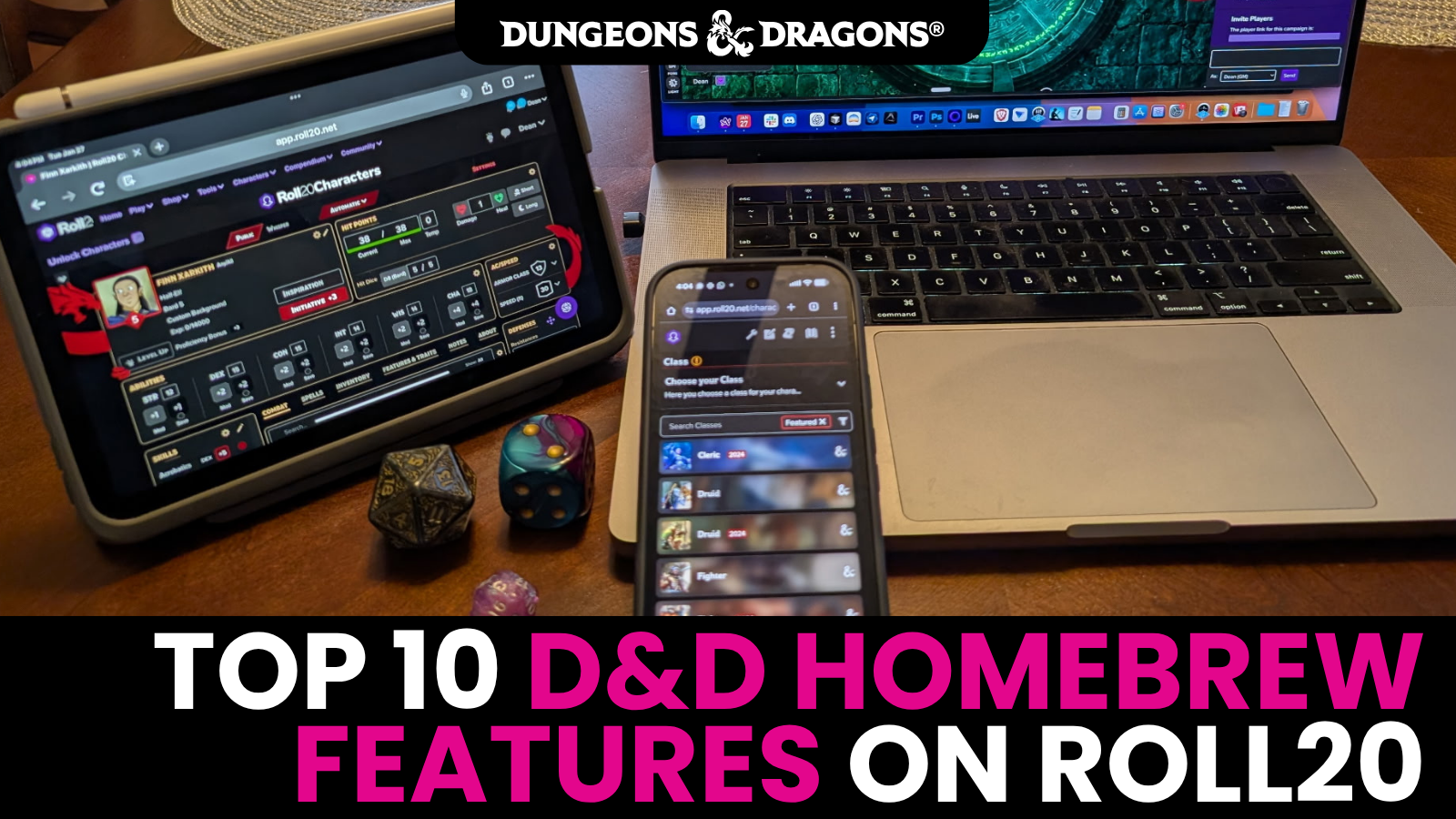

Roll20’s D&D homebrew tools are powerful, completely free, and sync across all your devices. Whether you’re online or at your in-person table, these features will change how you build and play. Here are 10 of our favorites! Build Your First Character any time!
#1: Multiple Damage Types
Sometimes you just need more damage. Let’s say you want to dip your ogre’s greatclub into some magical lava. You can add fire damage to the attack right on the character sheet!

How to do it:
- Open the character sheet and go to the Attacks section.
- Click the edit icon on the attack you want to modify.
- Add an additional damage entry (like 1d6 fire).
- Save.
Now every time you click that attack, it rolls all damage types automatically. The chat shows a full breakdown so everyone at the table knows exactly what’s happening. This works for any attack on any character. PCs, NPCs, and monsters!
#2: Equipment Modifiers
Magic items should feel magical. On Roll20, they do! When you equip a Belt of Hill Giant Strength, your Strength score jumps to 21 automatically. No manual editing needed. Unequip it, and your stats revert instantly.
But why stop there? You can create a Belt of SUPER SCARY MOUNTAIN GIANT STRENGTH that sets Strength to 30, boosts Constitution, or does whatever else you want!

How it works:
- Open the Equipment section on your character sheet.
- Add or edit an item, and go to advanced editing.
- Add modifiers to the item (like “Set Strength to 21”).
- Use the Equip and Attune toggles to control when modifiers apply.
Your entire sheet updates automatically when you toggle items on and off.
#3: Homebrew Automations
If you want to take it ALL THE WAY, Macros let you supercharge any action. Take a standard Greatsword attack. Nothing special on its own. Now turn it into a one-click macro called Slice & Smite that fires the base attack, asks if you want to add a Divine Smite, rolls exploding dice at higher levels, and triggers a visual holy effect on your token!

How to build a custom attack macro:
- Open your character sheet and find the attack you want to enhance.
- Click the edit icon, then Quick Actions, and select “Add Action to Token Bar” to create a token action.
- Open Advanced Tools (or shift-click the macro button) to edit the macro.
- Add your custom abilities, visual effects, and advanced dice syntax.
Example Macro: Slice-N-Smite
(Base attack from "Add Action to Token Bar" step)&{template:default} {{name=🌞🙏⚔️ Slice-N-Smite}} {{Divine Smite=[[?{Smite?|No,0|1st Level,2d8|2nd Level,3d8|3rd Level,4d8!}]] radiant}} {{desc=The blade grumbles with divine light!}}/fx nova-holy @{selected|token_id}What this does:
- Fires your base greatsword attack from the sheet
- Asks which level of smite you want (or none)
- At 4th level, the d8s explode on an 8, rolling additional dice
- Triggers a holy visual effect on your token
The ?{Smite?|…} is a roll query, a dropdown that appears when you click the macro. The 4d8! exclamation point triggers exploding dice syntax, when you roll an 8, it rolls another dice. And /fx nova-holy creates the visual effect.
#4: Custom Classes, Subclasses, Species, and Backgrounds
The Roll20 homebrew builder lets you create any combination of characters. Want a Blood Mage that uses Constitution for spellcasting, mixes Warlock and Wizard spells, and even has access to a Bard’s Vicious Mockery? Build it!

How to create a custom class:
- Open the D&D Character Builder.
- When selecting your class, choose Custom Class.
- Name your class and set the basics: hit dice, saving throws, proficiencies.
- Choose your spellcasting ability. Any ability score works!
- Select spells from any class, combination of classes, or individual spells.
This works similarly for custom subclasses, species, and backgrounds. The builder guides you through each step with dropdowns and options. If you can imagine it, you can build it.
#5: Feature & Modifier Builder
A custom class is nothing without fully automated features and modifiers!

How to create a feature:
- In the Character Builder, navigate to your custom class (or sub-class, species, or background).
- Add or edit a Feature.
- Set which level the feature unlocks at.
- Under the feature, click Add Modifier.
- Choose your modifier type and configure it.
- Save! The modifier now applies automatically on your sheet.
Example: Blood Mage Features
- Level 1, Blood Ward: Set base Unarmored AC to 13 + Constitution modifier.
- Level 2, Spell Woohoo: Add +1 to all spell attack rolls.
These features update your sheet automatically when your character reaches the specified level.
#6: Custom Resources
What if Spell Woohoo is a bit too overpowered? Rein it in by tying its usage to a limited resource! Custom Resources let you create trackable pools, like spell slots, ki points, or anything you invent.

How to create a custom resource:
- In the Feature Builder, add a new feature to your class.
- Add a Resource modifier.
- Set the name.
- Set the maximum.
- Set the recovery type
- Save.
Example: WooHoo Points
- Maximum: 6 per day
- Recovery: Recovers 1d4+1 on a Long Rest
- Usage: Every time you use Spell Woohoo, check off a point
The resource appears on your character sheet with checkboxes. Use an ability, check it off. Take a long rest, and they’ll restore automatically!
#7: Custom Conditions
You can create custom conditions that automatically update your character sheet! Standard D&D conditions like Frightened or Poisoned have specific effects (that you can also add and modify on Roll20!). But what about homebrew conditions? On Roll20, you can create any condition and attach real modifiers to it.

How to create a custom condition:
- In the character sheet, navigate to Conditions.
- Select the Settings cog.
- Create a new condition (like “Battle Trance”).
- Add modifiers to the condition:
- +2 to Strength
- +2 to Constitution
- Advantage on all attacks
- Save.
How it works in play:
- Toggle Battle Trance ON: Your Strength and Constitution modifiers increase by 2 instantly. Attack rolls now roll with advantage.
- Toggle Battle Trance OFF: Everything reverts to normal.
#8: Query Mode
Query Mode lets you apply modifiers only when the situation matches. Instead of a modifier that’s always on or always off, Query Mode creates a prompt that asks you a question during your roll. You decide in the moment whether the modifier applies.

How to set up a query:
- Open a condition or feature with a modifier (like Battle Trance’s advantage modifier).
- Add a Situation to the modifier.
- Write the prompt (like “Are you making a melee attack within 5 feet of the target?”).
- Save.
- Make sure your sheet is set to Query Mode (at the top of your sheet), otherwise the prompts will be skipped.
How it works in play:
- Battle Trance is active and you roll an attack.
- A prompt appears: “Are you making a melee attack within 5 feet of the target?”
- Select Yes, advantage applies to the roll.
- Select No, normal roll, no advantage.
Your sheet asks you questions and adapts on the fly. This is perfect for situational abilities that only trigger under specific conditions, like Sneak Attack eligibility.
#9: Level Planning
You can plan your character’s entire future right now! In the Character Builder, level all the way up to 20 and make every decision along the way. Feats, spells, ability score increases, subclass features, everything. Then level back down to 1. All your choices are saved behind the scenes.

How it works:
- Open the Character Builder.
- Build your character at level 1 as normal.
- Level up through the builder, making choices at each level.
- Continue all the way to level 20 if you want.
- Level back down to your starting level.
When you level up in-game, your previous selections unlock automatically. You can always change things as you go. But this lets you give yourself, or your players, a complete ready-to-play character from session zero.
#10: Character Templates
Everything you just built can be duplicated and shared! You spent time creating a Blood Mage with custom spellcasting, features, modifiers, conditions, and resources. Now turn it into a reusable template.

How to create a template:
- Build your character in the Character Builder with all your custom features.
- Right-click the character in your Journal.
- Select Duplicate.
- An instant copy appears! Every choice you made at every level carries over.
Roll20 offers unlimited characters for free, so duplicate as many as you need. This is just the beginning of the features we’re building to let you have a growing, re-usable homebrew library!
Try It Now!
All of these features are available for free, right now, in VTT and at your in-person table in Roll20 Characters on desktop, mobile, and tablet. You can build unlimited characters and experiment endlessly.
And this is just the tip of the iceberg. There’s so much more you can do with macros, mod scripts, shop sheets, and more. We’re building even more features to help you create and re-use the homebrew characters of your dreams!
What are you building first? Tell us on Discord or in theForums!