

When you manage a long-running campaign, one thing you’ll quickly find is that you have lots of encounters, maps, NPC portraits, and more to organize. In Roll20, we’ve used the term “pages” to refer to these elements of the game – spaces where the GM and the players interact, battle, and roleplay.
Today we’re very excited to introduce a new way to organize your pages (and your players!) during your Roll20 games: Page Folders and the Party Toolbox!
Get Organized with Page Folders
The first thing you’ll notice with the new Page Folders interface is just how smooth and modern it feels. Our design time put in a lot of work to consider how to bring our page toolbar up to the level of our new UI interface, as well as how to make interactions as easy and intuitive as possible.

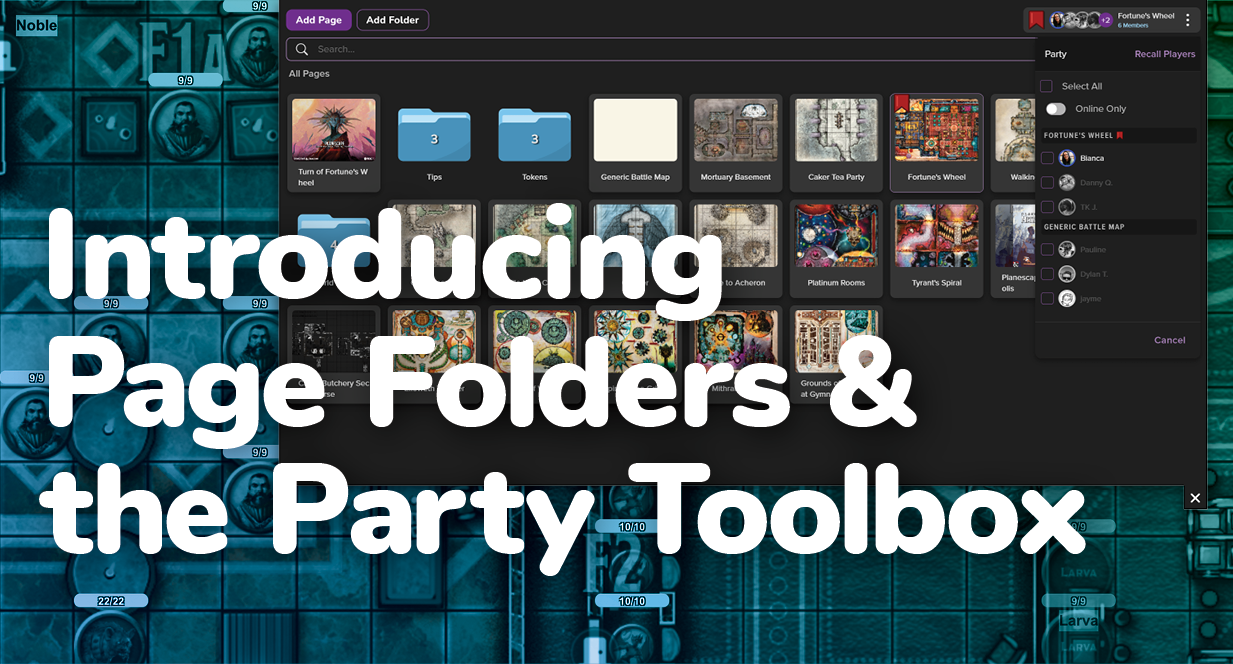
Making a folder is straightforward – just use the Add Folder button and a handy new folder will appear ready to be filled with adventure. Click to rename it, and then drag and drop pages into the folder to organize them. Click on a folder to navigate into it and view its contents. As a handy shortcut, you can also drag and drop a page onto another page to make a folder right in that spot with both pages inside of it.

Once you’re inside a folder, you can use the breadcrumb navigation to move back up a level. And if you want to move a page out of a folder, just drag and drop it onto the breadcrumb to place it in a different folder or back to the “All Pages” root level.
And of course, you can nest folders inside of folders so you can organize your game even further. Running a module with a lot of chapters and subchapters, or want to keep all of your quick combat encounters in a handy spot so you can quickly grab one when the party ventures off the beaten path? It’s now incredibly easy to do so.

Sometimes you might want to find a page (or a folder) quickly, without clicking around to figure out where you left it. We’ve added a powerful search field to the top of the Page Folders interface that will do partial-match searching across all levels instantly. So just type “Ravenloft” to find all your Ravenloft maps right away. This is one of those tools that once you have it, you’ll wonder how you ever lived without it!
Organize Your Players, Too!
As we started to build out the new Page Folders interface, we quickly realized that the other major piece of organizing a game is organizing the players themselves. Roll20 has always made it easy to move the whole group around, but splitting the party, or managing games that had lots of players in them, was always a chore. We built the new Party Toolbox to solve these problems and make your life as a GM even better.

Along the top we’ve made it more clear what the main bookmark ribbon in the Roll20 interface represents. You’ll now see little avatar icons of your players next to it, and you can drag and drop the Party Ribbon to move all the players in your game to a different page just like you could before. You can also move the ribbon directly between pages to quickly advance to the next encounter.
But where this new interface really shines is if you want to split the party. Just open up the Party Toolbox and you’ll now see a list of all players in the game. Simply drag and drop a player from here onto a page and you’ll create a new little Breakout Group along the top representing the separate group. You can drag and drop more players onto the same page to add them into that grouping. You can also just drag players to sort them right there in the list, putting them into a different group.
In addition to that, the list itself serves as a really useful tracker of which players are on what pages. Notice also that both online and offline players are shown: for the first time, you can now put a player onto a specific page even if they’re not currently in-game — really handy to prepare for a session ahead of time. Finally, if you want to bring the whole group back together, just hit the Regroup All button to place everyone back into the main Party Ribbon.
We think that the Party Toolbox is going to make it a lot easier to understand what’s going on with players in your game, to split up your players if you need to do so, and then to bring them all back together when you’re done. In future updates, we’re also planning to use this player list in other parts of the interface, to allow sharing handouts with players, for example.
The new Page Folders interface and the Party Toolbox are both available to everyone on Roll20 starting today! Note that you do have to opt in to the UI Redesign if you haven’t already – and with Page Folders, Party Toolbox, new Measure Tool, and new Compendium Search now waiting for you, you’ll want to check it out in your next game!