
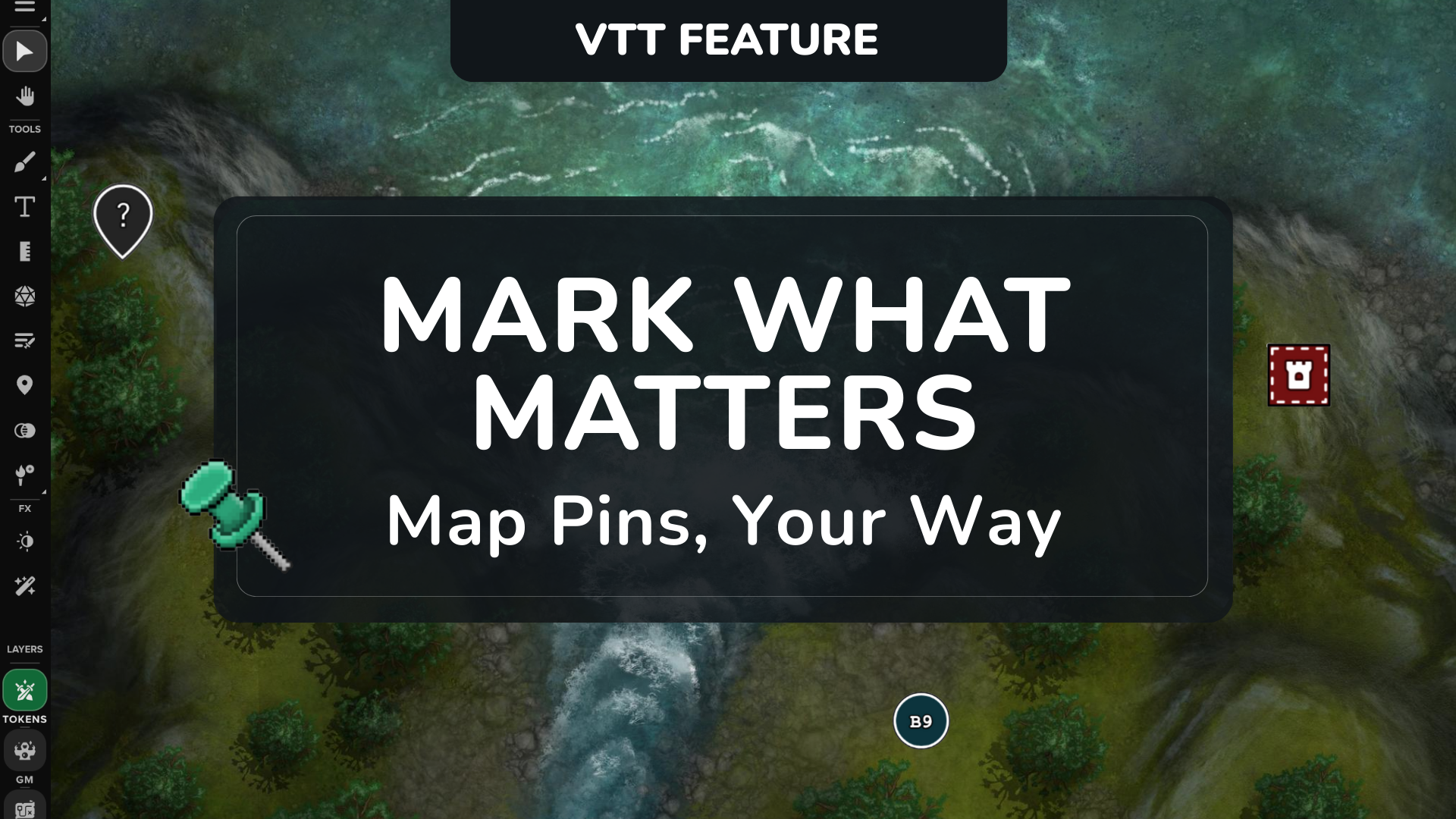

Update: As of 02/26/2026, Map Pins are out of beta! We’ve added multi-select and bulk-edit capabilities, enhanced tooltip display with image and rich text support, enabled pin creation defaults, and increased the character limit for notes in custom tooltips. Check out the Help Center for full details on how to use these new features.
Map Pins just got a major upgrade. Today, we’re rolling out even more customization options, giving you the ability to color-code locations, add information labels, and further personalize your campaign markers with new shapes, symbols, and custom pin uploads.

Custom Pin Colors

The ability to change the appearance of Map pins has been one of the top asks since we launched in beta Early Access last fall. Today, we’ve launched the second-most-requested customization option (since resizing) to everyone: color options!
In the Customization tab in the Pin Settings Menu (in games created by you), select common colors from the quick menu. Click the color picker for more options or to enter a hex code to completely customize the color of your pin.
You’ll see a responsive preview at the top of the modal that lets you try on different pin looks before saving changes.
Text Labels
Another fun, free customization option available now is the ability to assign alpha-numeric labels as a symbol displayed on your pins.
This is especially useful for games where locations are coded (example: 1A, C11, etc.).
To use, check the “use text” button and enter up to three characters in the input field.

More Options for Subscribers

Shapes and Symbols
Roll20 Pro and Elite subscriptions unlock advanced features in-game, like access to Custom Character Sheets and Mod Scripts, all of which allow for more control over the campaign. Now, those subscription tiers also unlock advanced Map Pin customization!
The shape of pins can be changed to a circle, diamond, or square instead of using the classic teardrop pin shape.
There’s also a library of symbols designed to replace the dot in the middle of the default pin, great for quickly communicating what various locations or types of information are found on the map.
Custom Image Pins
Perhaps the coolest subscriber benefit related to Map Pins, though, is the ability to toggle the pin type to “Image” and upload a custom pin marker (including animated ones)! Custom pins are 1:1 ratio (70x70px). They provide full control over the look and feel of campaigns, and unlock some seriously fun options for personalizing pins. Drag and drop tokens purchased from the marketplace or uploaded to your library, or upload from within the Pin Settings menu.
Navigate Faster with Journal Pin Shortcuts

The last update we have for you today is a new Go to Pin option located in the right-click context menu in the journal. When clicked, it centers your page on the pin associated with that handout!
When applicable, a Go to Pin Header option will show a submenu of header pins available to navigate to from that handout. (Note: if you don’t have pins or header pins, you won’t see their corresponding options in the menu).
This feature only centers the GM view, and doesn’t move players, but it’s perfect for pairing with Party Tools to quickly transport them to a new location.
What’s Next?
We’re still loving the feedback rolling in around Map Pins, and want you to know that pin Multi-Selection and Bulk Editing are in progress now, which will make customizing existing pins a breeze! We’ve also got a handful of community requests on the roadmap, including Default Pins and some quality-of-life updates.
As we wind down the Open Access beta, keep reporting any bugs you run into (in VTT, or here), and let us know if there are any other ideas you have for Map Pins that you’re missing in your game on our Forums, on social (X/Twitter, Bluesky, Instagram), or in our Discord Server.
Frequently Asked Questions
Yes! All users (including free) will have access to Map Pins when they come out of beta.
Advanced customization options (shapes, symbols, custom uploads) are available to Pro and Elite subscribers.
Yes! Use the Place Pin button from the left toolbar or the right-click menu to make a pin from scratch. You may also unlink a pin created by dragging a handout/anchor.
You can update your pins through the Pin Settings menu. In addition to the display and contents of your nameplate, pin image, and tooltips, there is a Customization tab with options for the appearance of the pin, ranging from size to color and other advanced options.
Yes.
– There is a “Go to Pin” button that works for pins created from anchors, which is found within qualified handouts.
– You can also access “Go go Pin” functionality via right-click in the context menu of the journal on handouts that have linked pins.
No. Making a pin visible only allows players to see a preview excerpt of the handout content via its tooltip. If you want to give players full access to the handout, you’ll need to share it with their journals separately. You retain full control over what’s revealed and when.
As of 01/15/2026, Mod Script (API) support for Map Pins is now available to Pro and Elite users! While Customization isn’t available quite yet, it will be soon!
One of our community members and script writers, Keith Curtis, has developed a Mod Script called PinTool that streamlines how Game Masters create, manage, and organize map pins. With it, Pro and Elite subscribers can:
– Bulk create, replace, and edit Map Pins
– Place pins automatically from handout headers (H1–H4)
– Convert map tokens into structured, linked handouts
– Preserve pin positions when replacing existing note token style pins
– Handle GM Notes and Player Notes independently
Read more and watch a demo video here.
For more information, please see our Help Center. Happy gaming!!