
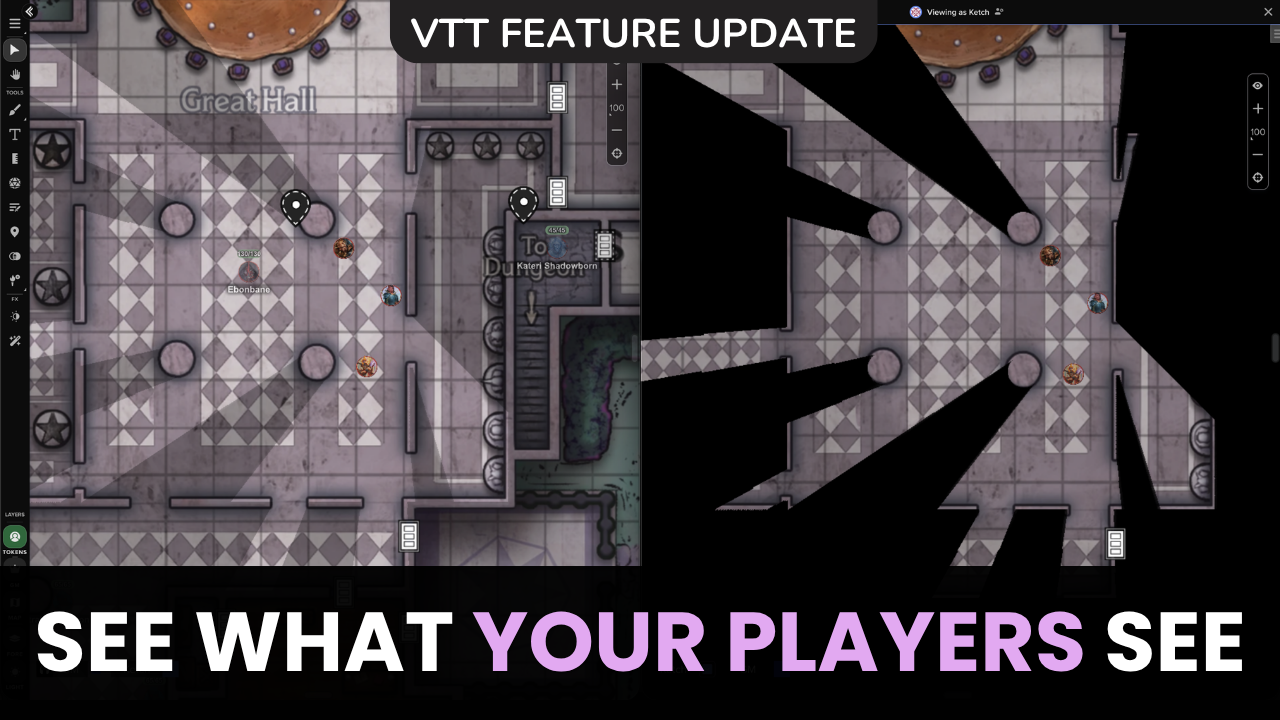

Hey everyone. Lavi and Fran are back and joined by Sarah, our Lead Engineer on Player View, and the third leg of our stool!
We first announced our View as Player project, followed soon after by a preview of early designs, a few months ago. Since then, our team has digested a ton of feedback, tested things extensively with our users, and held a community poll to decide the feature’s official name. The verdict, by popular vote: Player View. (We love it!)
Recap: What We Aimed to Solve
GMs have always used workarounds like second accounts or “rejoining as player” to figure out what their players see on the VTT. Ctrl+L shows token line of sight, but not a player’s true view (and doesn’t hide GM-only elements).
What Player View Provides

Faster game prep: Session prep involves a lot of moving parts, including (but not limited to) creating tokens, assigning character ownership, setting up vision, and party placement. Player View provides real-time feedback as you prep, so if something isn’t looking right, you catch it early, fix it, and keep moving.
Confident, controlled setup: Despite controlling many components of game setup before session start, GMs have historically had to wait for their player(s) to log in to configure macros, confirm if handouts are visible, or make sure characters are properly assigned. Now you can handle all of that yourself, ahead of time, and verify it without the back-and-forth.
Mid-session troubleshooting: Is something off for one of your players? Open their view in a new tab, see what they’re seeing, and get back to the game quickly. No lengthy interruption, no “can you describe what’s on your screen?” back-and-forth.
Master the VTT as you play: Seeing both sides of the table at the same time is one of the quickest ways to learn how Roll20’s permissions and visibility work. (New GMs, this one is especially for you!!)
Bonus: When a player is confused about something they’re seeing (or not seeing), you no longer have to talk them through it without seeing. You can pull up their exact view, see what they see, and adjust things together in seconds instead of wasting time trying to get on the same page.
What We Built
A true player experience
When you open Player View for a specific player (via the Player Picker – see below), a new browser tab opens, showing that player’s exact view of the game, including their chat, Journal, and more! The tab name and an in-VTT banner make it easy to tell whose view you’re in at any particular time.
Tip: You can have multiple Player View tabs open at the same time!
To switch players without going back to the GM screen, use the settings icon in the banner.

The Journal, Chat, Jukebox, and Collections tabs each show what that specific player actually has access to. This is great when you’re curious whether they can see a handout or have control of a character.

Player Picker
There’s a new menu inside the VTT for picking which player to view the game as. You’ll find it in the new View Controls menu (more on that below).
It shows who is online (or offline) and what page they’re on… great for quickly diagnosing why one player may be seeing something different than the rest of the party. The Player Picker also includes a search bar, which GMs of West Marches with larger rosters will appreciate.
No players yet? No problem.
If your players haven’t accepted their game invites yet, don’t worry. Choose the “Approximate Player View” option in the Player picker to rejoin the game as a player and see what the player experience will look like (just keep in mind, you’re seeing your permissions, not a specific player’s).

Taking Action on a Player’s Behalf
Player View isn’t just observation. You can actually set things up for a player before the session even starts.
We put extra thought into privacy and security here, so any actions you take in Chat appear as “GM as [Player Name]” for full transparency, and player-to-player whispers stay private and won’t be visible from this view.
That means before your players ever join, you can:
- Set up macros on their behalf so they’re ready to go from the first roll
- Pre-explore areas by moving a player’s token around the map, so the scene is set exactly how you want it when they arrive
- Check the Journal to confirm characters and handouts are assigned correctly, exactly as the player will see them
And, if you want to quickly fix something for them mid-game, you can without having to dictate the required action for them to take themselves.

Explorer Mode
If Explorer Mode is on, you’ll see a banner in Player View confirming it. Moving a player’s token in this view updates their explored areas, exactly as if they’d moved it themselves, making pre-exploring super useful for session prep. (This is also worth keeping in mind if you’re moving tokens in Player View mid-session for other reasons.)
If you need to undo explored areas, there’s a “Reset what I explored” option available while you’re in that Player View session.
Important: that reset option goes away as soon as you leave the Player View session. Once you close out or switch to another player, whatever was explored becomes permanent for that player.
A new View Controls menu
We also took this opportunity to clean up the toolbar. There’s now a dedicated View Controls menu that groups everything affecting how you or your players see the VTT together, including:
- Player View
- Preview Token Vision (Ctrl+L)*
- Opacity sliders for layers and darkness
- The Foreground toggle
- Dark/Light Mode
*Speaking of Ctrl+L: the community voted to rename it “Preview Token Vision”, which more accurately describes what the feature does. This shortcut is still a great go-to for quick vision checks.

A Few Things Worth Knowing
- Some things (like visual effects toggles and Voice and Video) won’t look the same in Player View as they would on an actual player’s device, since their settings live locally on their players’ devices.
- For more detail, including an FAQ, more edge cases, and how to assign tokens to players if you’re just getting started, check out the Help Center.
- This feature is what it is thanks to community Discord Lab sessions, forum threads, Reddit polls, and all the Roll20 champions who helped us think through the edge cases and build the best tool we could.
We’re excited to see how Player View helps you in your games. And as always, we’re keeping our ears to the ground: if something feels off or isn’t working the way you’d expect, report it through the in-app feedback link.
— Lavi, Fran & Sarah