
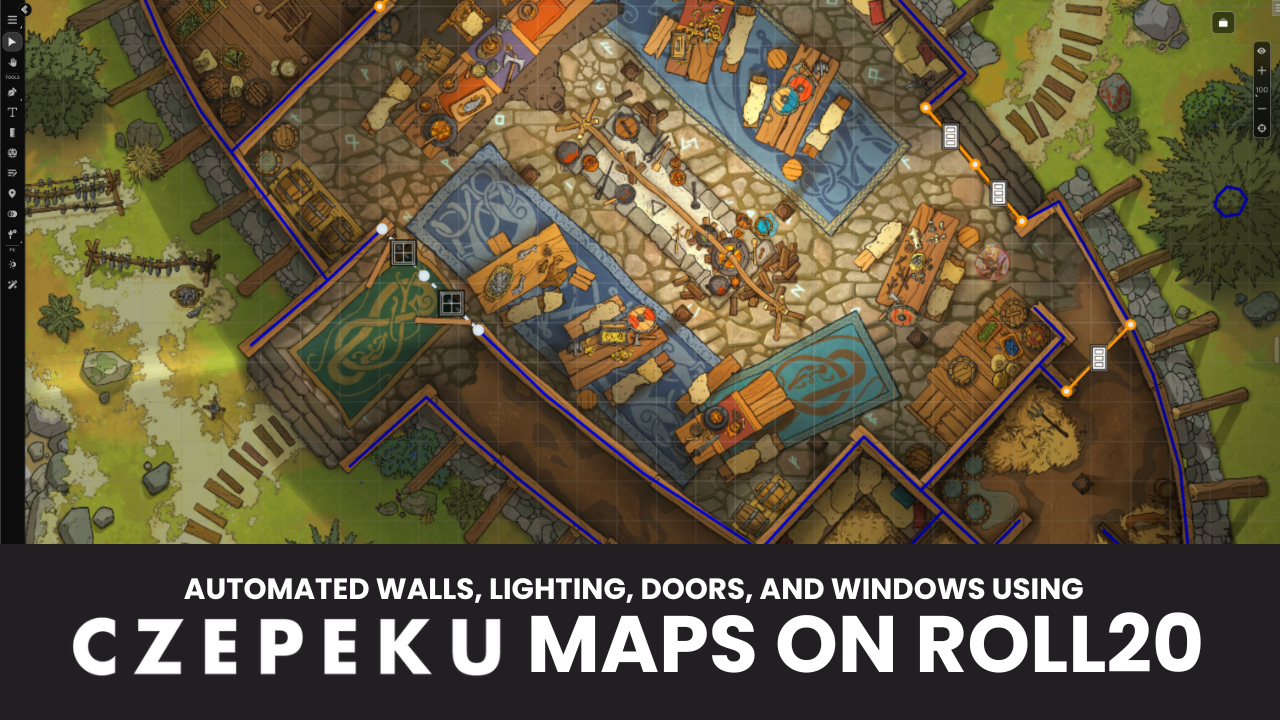

If you missed the news, we recently released support for UVTT uploads on Roll20 as part of our Page Menu redesign. When uploading a UVTT map file, Roll20 places your image on the Map layer and pre-configured walls, doors, windows, and lights on the Dynamic Lighting layer automatically; no more hand-tracing walls as part of game prep.

A Roll20 subscription is required to view and edit Dynamic Lighting. If you aren’t a Plus, Pro, or Elite subscriber, uploading a UVTT file still places the image on the background and places the Dynamic Lighting lines, lights, and portals… but you will only be able to view the static map in-game. If you decide to upgrade your account in the future, everything will be set up and ready to use. Plus subscribers previously excluded from any use of UVTT files can now enjoy the format and its benefits, along with built-in feature support.
Where to Find UVTT Maps

To browse thousands of UVTT maps spanning any scene you can imagine, look no further than ENNIE and CRIT Award-winning Czepeku, who you may be familiar with from their titles on the Roll20 Marketplace.
Their team of artists has built one of the largest collections of hand-drawn battlemaps in the hobby, with over 12,000 and counting. Plus, they put out new releases every week for subscribers.
Most Czepeku maps are available as a UVTT download alongside the standard image, which means the walls and lighting are already set up for use within Roll20.
How to Download a UVTT File From Czepeku
- Browse to the map you want on czepeku.com and pick your variation.
- Click the download icon next to the image.
- Select the Universal VTT (UVTT) option from the list of formats.

Unlimited UVTT downloads are a subscription perk on Czepeku. Check out their subscriber tier breakout, and their guide to using UVTT files with Roll20.
How to Import It Into Roll20

- Open your game and go to the Page Menu.
- Click Create Page to open the dropdown.
- Select Upload Background, then drag and drop the UVTT file you just downloaded.
That’s it. Roll20 reads the file and automatically builds your scene with your image, walls, doors, windows, and lights. Give it a once-over on the Light layer to make sure everything is placed where you’d expect, make any tweaks you want, and you’re ready to play!
Learn more on our Help Center.
Let us know how you like UVTT uploads!
If you have ideas about how to make the tabletop better for your games, or have feedback about this feature, let us know. Feel free to also join us on Discord, where you can hang out with other community members and connect directly with staff for brainstorming, troubleshooting, and announcements.