

Starting today, Roll20 officially supports UVTT file uploads that automatically place your background image on the Map layer and walls, doors, windows, and light sources on the Dynamic Lighting layer, ready to play.
This update comes hand in hand with updates to the Page Menu within the VTT that make the various page-creation options available to GMs easier to find and understand, and introduces two new methods. Here’s a look at everything new.
A More Robust Page Menu
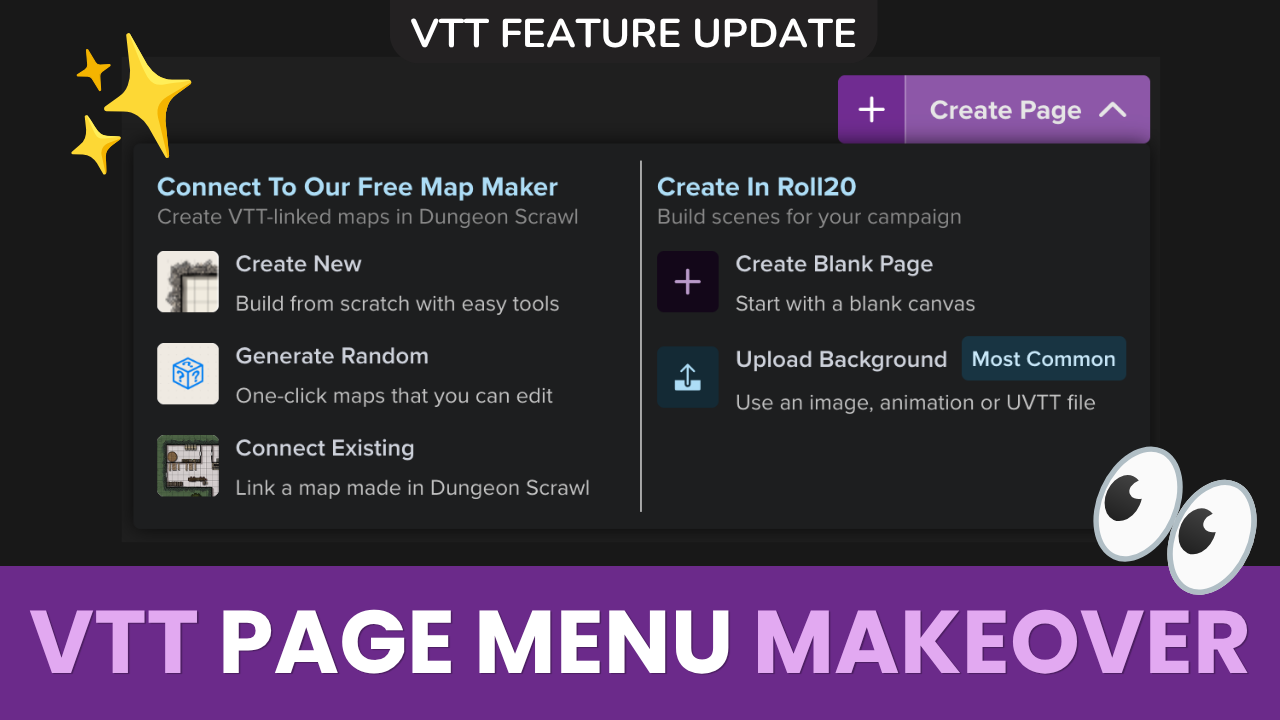
We’ve replaced the old Page Menu options with a more robust dropdown, opened by clicking Create Page. (Clicking just the + still does exactly what it used to: drops a blank page into your campaign.)

Inside the dropdown, the older options you’re used to are all still there, relabeled for clarity, alongside two brand-new ways to get a map into your game: Random Dungeon generation via Dungeon Scrawl (more information), and Direct Map upload, which includes new UVTT file support.
Opening the menu shows two sections:
Connect to Our Free Map Maker (Dungeon Scrawl)
The Roll20/Dungeon Scrawl Connection allows you to sync a Dungeon Scrawl map directly to the VTT. As you draw and make changes in your Dungeon Scrawl tab, they appear automatically on the connected Roll20 page, no exporting or uploading required.

- Create New: build a connected map from scratch with Dungeon Scrawl’s tools
- [NEW] Generate Random: opens a connected Dungeon Scrawl map to the Random Dungeon tool, perfect for on-the-fly map generation or for GMs who want a usable map without drawing one from scratch.
- Connect Existing — link a map you’ve already built in Dungeon Scrawl
Create in Roll20
- Create Blank Page: start with an empty canvas (same as clicking the + button)
- [NEW] Upload Background: add an image, animation, or UVTT file directly to your game
That last one is where UVTT upload lives, so let’s talk more about that.

Using UVTT Files on the Tabletop

Any GM who’s hand-traced Dynamic Lighting walls over a detailed battlemap knows how long it can take. UVTT Maps ease the pain of manual lighting, so you can focus on preparing other parts of your campaign.
The only way to use UVTT maps prior to this release was by using the community-built UniversalVTTImporter Mod Script, available to Pro and Elite subscribers. While that tool is still available to subscribers who want advanced configuration options, the built-in functionality ensures that everyone can upload UVTT files regardless of subscription level, and UVTT data is visible to all subscribers via the Dynamic Lighting benefit.
Free users that upload UVTT files will have their image placed on the background and Dynamic Lighting lines, lights, and portals on the Light layer, but will only be able to view the static map in-game. If they decide to upgrade in the future, everything will be set up and ready to use. Plus subscribers previously excluded from any use of UVTT files can now enjoy the format and its benefits, along with built-in feature support.
How to Upload UVTT Maps

- Open your game and go to the Page Menu
- Expand the Create Page menu
- Select Upload Background and browse or drag and drop your UVTT file (.uvtt, .dd2vtt, or .df2vtt are supported)
Roll20 processes the file and creates a new page with the image and Dynamic Lighting data already placed. From there, GMs can tweak the position and type of any walls, portals (doors and windows), and lights right on the Dynamic Lighting layer.
Tip: Dynamic Lighting should be enabled by default after a UVTT upload, but if anything looks off, double-check it’s turned on in Page Settings or the Dynamic Lighting Tool in the left toolbar.

Adjusting Doors, Windows, Walls, and Lights
You can fine-tune anything that was placed automatically from your UVTT file to the VTT from the lighting layer. Check out Creating Light, Windows, and Barriers for more details about what’s possible.
Where to Get UVTT Files
Most major map-making tools can export in Universal VTT format. You can also find pre-configured UVTT maps from creators on Patreon, Reddit, and DriveThruRPG.
Czepeku, who sell their maps and scenes on the Roll20 Marketplace, recently began offering all maps on their website as UVTT downloads.

A Few More Things Worth Knowing
- One map per file. Each UVTT file contains a single map image, so a multi-level dungeon means uploading one file per floor.
- Only static maps work as UVTT files. Animated maps aren’t supported by the UVTT format itself.
- Portal accuracy depends on the source tool. Every map-making tool represents doors and windows a little differently, so you may occasionally need to change a portal type or tweak a light after upload. You can control and tweak everything.
- Storage-friendly. Only the map image counts against your storage quota. The lighting/wall data doesn’t.
- Non-subscribers aren’t locked out. Free users without Dynamic Lighting access still get the image and the lighting data placed on the page. If they upgrade later, they’ll be able to see the lighting already built into their campaign.
You can read more about UVTT files in our Help Center. Let us know how this update impacts your games, and if you have any questions, feel free to reach out on our Forums, Discord, or your social media platform of choice.