
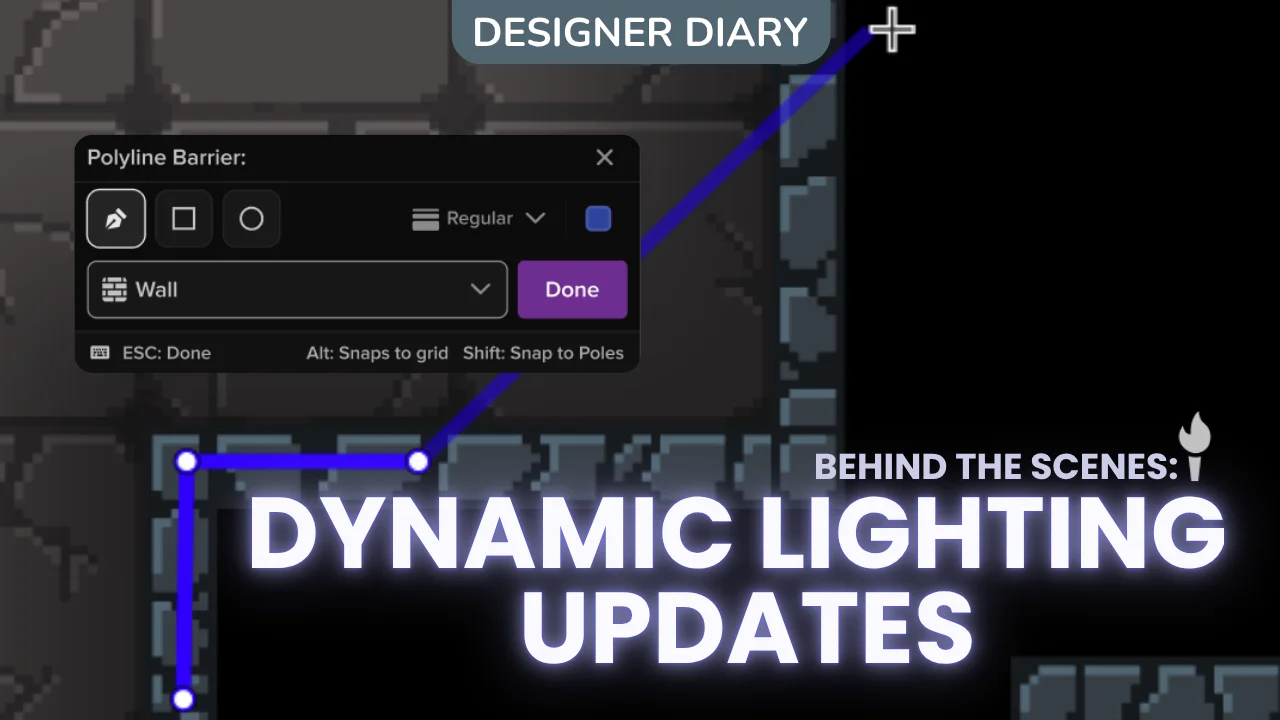

Hello! I’m Fran, a UX designer on Roll20’s VTT team. Last month, Lavi shared that we’re working on making Dynamic Lighting easier to draw, manage, and trust. This post shows you where that work is now and how we got where we are today. Let’s dive in!!
TLDR: we’re building barriers you can fix without redrawing them, and putting all of your lighting tools in a handy hotbar rather than a settings menu. Barriers, lights, doors, and windows will all be together, and you’ll be able to move vector points, delete line segments, and change segments from one barrier type to another. Join us in two days for a live preview & feedback session! (details below)
A love of the dark
When we asked GMs why they use Dynamic Lighting, they said things like:

My favorite: “To add drama.” (The period makes me laugh.) As GMs, you want your players focused, attentive, immersed, and engrossed. Our job is to make that as easy as possible for you to do.
What gets in the way
Lavi’s post announcing this work covered it, but the short of it is that most GMs told us setting up a Dynamic Lighting map takes too long and doesn’t feel intuitive. A common sentiment calls out editing as near-impossible; when you trace the perimeter of a room, your first click might be perfect, the second click is okay, but if the third click is off? Oof, start over. The task (yes, task) feels burdensome and high-stakes, adding stress. (No stress allowed!)
Another user, who I swear I didn’t pay to say this, summed it up for us quite nicely. “Everything is too scattered, hard to find, and very difficult to navigate to. Line drawing is in one corner, lighting options are somewhere completely different: hidden away in multiple submenus. The only reason I am ever on the lighting layer is to manage my lighting. I’d like Roll20 to be more context-aware.”
Where it all started
Let’s rewind a few years. My first project on the VTT team was the layers rework. During that work, user research confirmed something that Brittany and I had suspected: actions that belong to a layer should live on that layer. Map tools on the Map layer. Lighting tools on the Light layer, right where you’re drawing.
Back in 2023/ early 24, we launched the new toolbar and layers panel, but then moved on to a feature users were clamoring for: page folders. After that, we needed to focus on performance. In short, per-layer actions didn’t make the cut that round. However, I’d already designed a lighting layer contextual hotbar and tested it, rather extensively, with GMs, and they were excited about it.
When GMs tested some early version of this layout, they told us:
- “The centered feel of it feels more like GM at a real table.”
- “Made the tabletop the main focus of my screen.”
- “Organized and tidy. Things are not hidden within countless menus nor in a giant list of options.”
When asked at the end of a usability test, ” What did you like about this design?” One user said, “Everything. Push this to prod already.”
Listen, the designs were by no means perfect, more of a proof of concept than anything, but the idea was sound. Louder than the promising feedback on the designs were requests for Roll20 to make dynamic lighting more performant and stable. I tucked the designs into my back pocket for safekeeping and knew that when I revisited them someday I’d have a decent starting point.
This image shows an early design for a dynamic lighting hotbar, showing a dedicated Preview Token idea


During our more recent Dynamic Lighting settings rework, I tried again from a different angle: I squeezed every lighting tool into the settings. In one version, I had added a Manual Tools tab with barriers, light sources by cell size, and portals. Another version put a small hotbar inside the settings panel. Both were perhaps better than what we had… a disparate place menu and a generic drawing tool, but the experience didn’t quite work; it didn’t quite feel intuitive. The designs never really got you out of the menu and onto the map.

Time marched on, and the feedback about dynamic lighting kept coming, and I did my best to collect it. Requests for editable lines. Requests for more light presets. Requests for different keyboard interactions. Requests for a brush tool.
I’d be chatting with a user about the measure tool, and a sly comment would come up: “And another thing: what about moving parts of lines after you place them?” On the forums, talking about our effects tool, a user would pitch in with an unrelated note: “Drawing lighting lines is too many clicksss!!” In rounds of interviews about map pins: “Oh, while I have you, you know what would be really great…?” (these are all anecdotal, unlike the other quotes in this blog)

My map layer hotbar mocked me from my back pocket, feeling almost cooked, feeling like a good starting point, but a separate set of work emerged: modernization of lines.
This image shows a scrapped design ideation for a hotbar, this time applied to the map layer
As a user of modern design tools, I’m acutely familiar with the existing patterns around vectors and lines, and as the expectations of users grew to match more modern tooling, I worked to document and map out what interactions we had, what interactions we needed, what interactions we wanted, and how that differed from what we had. As an aside, it was actually a bit of a nightmare to document and work through; I created what the devs might refer to as the spreadsheet from hell, but I powered through and ultimately found it quite fun. (I don’t think the devs found it fun.)
Chasing Whimsy

While the engineering team focused on performance, I explored ways to bring more playfulness to our tooling, aiming to transform dynamic lighting from a chore into an engaging experience. Taking a pie-in-the-sky approach, I brainstormed drawing concepts users had brought to me themselves, like on-board light controls, brushes, and light presets. Although these ideas stretched feasibility, they were essential for discovering how to create a more enjoyable, tactile experience for users.

In a similar spirit, a couple of VTT developers tackled on-board radius manipulation during a hackathon, exploring possibilities enabled by our new engine and considering how to apply similar patterns to other features and objects. Not every experiment succeeded, but everyone involved shared a unified goal: making our favorite tool truly delightful to use.
This image shows the team working through some lighting placement ideas
Early previews
Editable Lines
Our current work treats a barrier as something made of parts, which I will call points and segments. You can work on any one of them without touching the rest.
| What you want to do | Today | What we’ve built |
|---|---|---|
| Move one point | Not possible | Drag it or select it and use arrow keys |
| Move part of a line | Not possible | Drag it or select it and use arrow keys |
| Add a point mid-line | Not possible | Alt-click the line |
| Delete one point segment | Not possible | Select it, press Delete or hit Backspace |
| Delete a segment of a polyline | Not possible | Select it, press Delete or hit Backspace |
| Delete an entire drawn polyline | Select it and press Delete or Backspace | Double-click or Ctrl-click and press Delete or hit Backspace |
| Change Wall to One Way after drawing | Not possible | Change it on the selection |
| Change wall to Door | Not possible | Change it on the selection |
| Extend a line | Not possible | Alt-click and place the next point |
A few details I’m proud of:
- Double-click selects entire polylines.
- Points that meet snap together. Drag a corner where two walls join, and both move with it. When two barriers merge, you see it happen!
- You can finish a line however you’re used to. Enter, Esc, double-click, right-click, or the Done button.
Here’s one thing I’m not sure about yet. In the current tool, holding Shift while drawing snaps to the grid. In our test environment, Shift locks your line to straight and 45° angles, and Alt snaps to the grid. That matches most drawing software, but it means your Shift habit does something different. We made that call on purpose, but if the masses clamor for a love of shift, by god we will listen!
Another open question we have is the transform box: Does it feel easy enough to get to for the people who use it?
The hotbar
When you’re on the Light layer, a hotbar sits at the bottom of your screen with everything Dynamic Lighting needs in one row. From left to right, what we have now (subject to change!): a toggle to turn Dynamic Lighting on and off, the dynamic lighting settings menu, place torch, create a torch, draw barriers, erase barriers, place portals, assign vision, & view as player
Each tool required me to design a place state and a selected state. I started with a separate tool for both states of each of the four Barrier types. Next, I tackled lights, with tools for building your own light and placing default lights (again with two states each). Doors and windows each needed two states as well. Every one of those variations had to be usable, do its job, look good on its own and alongside the others, and be built from reusable elements, so I ended up drawing around 100 variations of these bad boys. Overall, it was really fun, but I did tear my hair out a few times in the process.


We’ve been working on getting the menus in place for the hotbar to work, and while we are in there, cleaning up the UI and adding some keyboard shortcuts. The tools themselves are feeling pretty solid, but what we’ve been thinking about and diving into is how to really polish how everything feels, making it intuitive as a whole.
This image shows working through the different drawing states of our tools, mid-design process.
Things we are thinking about:
- How we can help GMs understand if their players can see, and if not, why.
- How we can help GMs assign vision and light settings without mucking up their screen with a bunch of UI
- How we can help new users understand dynamic lighting a little easier right off the bat
This image shows very WIP ideas for on-board toggles and manipulation controls. No promises here!

What’s next
We’re going to keep building out the hotbar and grow its menus from barriers to torches, doors, and windows. The devs are churning out menus like crazy; those are coming!! We’ll be running Dynamic Lighting Lab Sessions in the Roll20 Discord. If you want a say in what comes next, that’s the place. 🙂

As always, we love hearing from you, so even if you can’t make the Lab event, you can always find us online: